What your AI accomplishes with klarx
- Request rentals: find the right machine for your project in the klarx catalog with 275 product categories and submit your rental request directly
- Create and retrieve projects: set up new construction sites and keep all your projects in view
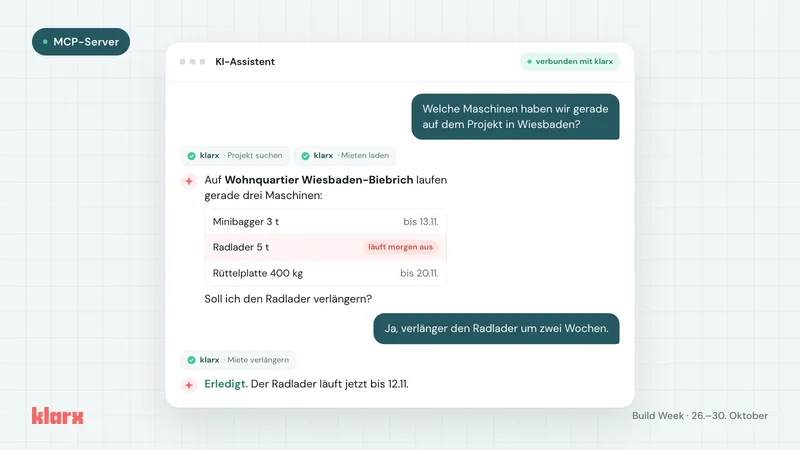
- Manage rentals: see which machines are still running on your construction sites
- Retrieve billing data: view billed items and rental days directly in the chat
Typical questions to your AI include, for example:
- "Create a rental request for a mini excavator at the North construction site, starting Monday for two weeks."
- "Which machines are still running this week?"
- "How many rental days were billed in September?"
Also from your own systems
Your own agents and systems can use the MCP Server just as easily as your chat:
- Request rentals from your system: When a project moves to a new status, your agent requests the matching machines from klarx and feeds rental codes and prices back into your calculations.
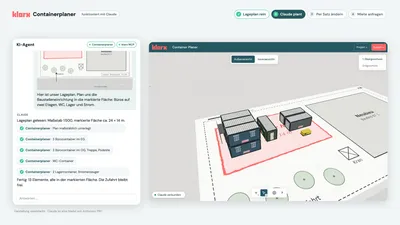
- Large projects in one step: Your agent creates the project and rental request with all items from a scope of work or Excel list.
- Verify documents: Your agent matches a notice, delivery slip, or inquiry from the site manager with the corresponding rental.
You stay in control
Your AI can do exactly what your klarx login allows. Rights that apply to site management, procurement, or dispatch at klarx also apply in the chat. You can revoke access at any time.
Once a request goes to your AI provider, their terms for hosting and data protection apply. Your IT department decides which assistants your company allows. Learn more under Rights and Data Security.
Why we do this
At klarx, we work with AI assistants on our own systems every day. We want to give our customers this capability too. The MCP Server is a first building block. We're happy to develop with you on what tasks your AI should handle next.
How to get started
The process begins with a discovery call. We learn about your workflows and clarify which tasks your AI should take on. After that, we guide you through onboarding and activate your company. Schedule a meeting on the MCP Server page. Read more about how the connection works technically under Connect AI Assistants.
Empowering the future of construction.